Connecting AI apps to SyncSeats
Step by step: add SyncSeats to Claude, ChatGPT, Cursor, VS Code or another AI app, choose what the app may do, allow live changes with your authenticator code, and disconnect it again.
Updated 12 min readBy the SyncSeats team
What a connected app can do
SyncSeats speaks the Model Context Protocol (MCP), the standard AI apps such as Claude, ChatGPT, Cursor and VS Code use to work with other services. Once SyncSeats is connected, you tell the app in your own words what to do, for example “Which of my listings for Wembley, Night 2 are not on sale yet?” or “Create a draft for two tickets in Block 112, Row F for World Tour 2026, Night 2, at $412 each.” The app finds the event in the SyncSeats catalog, reads your listings and inventory, and prepares the change.
What it may do depends on the permissions you choose when you connect it:
| Permission | What the app may do | When you connect |
|---|---|---|
| Read your inventory | See purchases, sales, costs and ticket accounts, as on the Inventory page | Ticked |
| Read your listings and search events | See your listings with prices and marketplaces, and search the event catalog | Ticked |
| Create and edit drafts | Save new listings as drafts and change the price of a draft | Ticked |
| Make live changes | Put drafts on sale and change the price of listings that are on sale | Not ticked |
| Take listings off sale | Take listings off sale on every marketplace | Not ticked |
The last two only work once you also turn on live changes for the app in SyncSeats (see Allowing live changes). Without a verified identity, the three permissions that change something cannot be ticked, and the app can only read.
Some things stay in SyncSeats: a proof of purchase, a marketplace’s own price, notes for buyers, and the category or fan section a marketplace asks you to choose. An app never sees payouts, bank or tax details, your password, two-factor settings or devices, or anything of another account.
Before you connect
- A SyncSeats account with two-factor authentication. Without it, SyncSeats does not connect an app.
- A verified identity, if the app is to save drafts or make live changes.
- An AI app that connects to MCP servers on the internet and signs you in through your browser (OAuth), such as Claude, ChatGPT, Cursor, or VS Code with GitHub Copilot. Whether your plan includes custom connectors is up to Anthropic and OpenAI; their help pages are linked under Sources.
The address every app connects to:
https://www.syncseats.com/api/mcpConnecting Claude
- In Claude, open Customize, then Connectors, and choose Add custom connector. On Team and Enterprise plans an owner adds the connector for the organisation first; you then choose Connect.
- Enter SyncSeats as the name and the server address in the second field, and choose Continue.
- If Claude then shows the sign-in settings it found, keep them and continue. In our test it went straight on.
- Claude opens SyncSeats. Sign in with your password and two-factor code and choose what Claude may do (see What SyncSeats asks you).
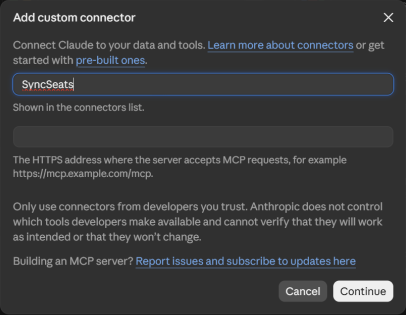
Anthropic’s help says custom connectors work on every Claude plan, on the free one with a single connector. Claude marks SyncSeats’ tools as needing approval, but in its default mode, Auto, it used them without asking us first. What keeps you in control is the preview (see How a change is made).
Connecting ChatGPT
- On chatgpt.com, open Plugins, choose Add, then Add custom MCP server. If the option is not there, turn on developer mode in ChatGPT’s settings first; we had it on.
- Enter SyncSeats as the name and the server address as the Server URL, and set Authentication to OAuth.
- Leave Advanced OAuth settings as they are. ChatGPT finds how SyncSeats signs it in and shows Client Identifier Metadata Document as the registration method; there is nothing to fill in.
- Tick I understand and want to continue and choose Create as a plugin.
- Sign in to SyncSeats and choose what ChatGPT may do.
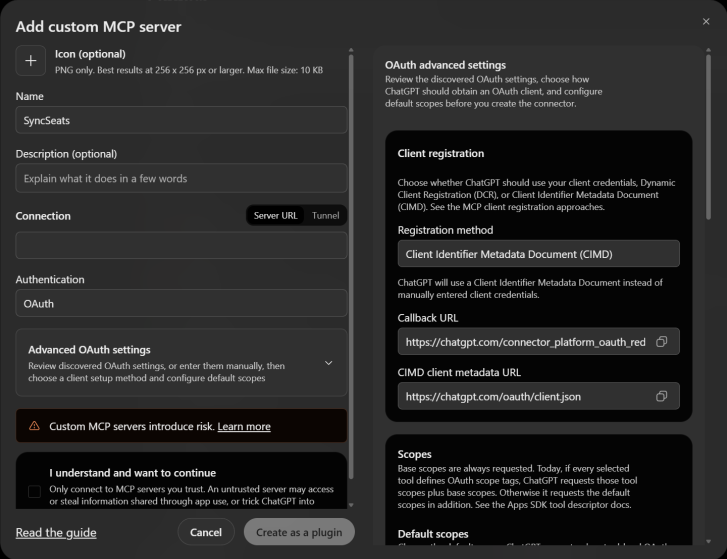
OpenAI’s help lists which plans may connect custom MCP servers and use actions that change something; we tested with ChatGPT Plus. With Permission set to Allow low-risk, ChatGPT did not ask before it confirmed a change (see How a change is made).
Connecting Cursor
In Cursor, open Customize, then MCPs, and choose New MCP Server. User opens the file ~/.cursor/mcp.json, for every project; a workspace opens .cursor/mcp.json in that project, for it alone.
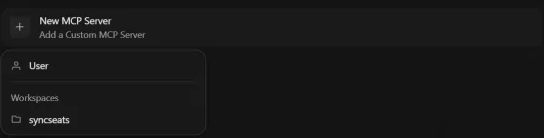
Add SyncSeats to the file and save it. If the file already lists servers, add only the syncseats entry under mcpServers.
{
	"mcpServers": {
		"syncseats": {
			"url": "https://www.syncseats.com/api/mcp"
		}
	}
}- Cursor lists SyncSeats under Needs Attention with Needs authentication. Choose Authenticate.
- Your browser opens SyncSeats. Sign in and choose what Cursor may do. When the browser asks whether it may open Cursor, allow it.
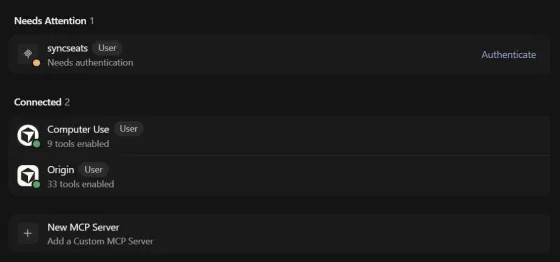
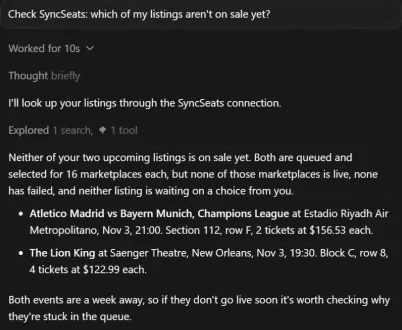
Then ask Cursor’s agent in your own words, for example which of your listings are not on sale yet:
Connecting VS Code
VS Code works with SyncSeats in the chat of GitHub Copilot, so sign in to Copilot first. Then:
- Open the Command Palette with Ctrl+Shift+P (on a Mac Cmd+Shift+P), run MCP: Add Server and choose HTTP.
- Enter the server address, then syncseats as the server ID. To have SyncSeats in every project, choose Global, then Copilot Global.
- VS Code starts the server when the chat first needs it, or under MCP: List Servers. When it asks whether you trust the server, choose Trust.
- When VS Code says that syncseats wants to authenticate to SyncSeats, choose Allow, then Open for the website.
- Your browser opens SyncSeats. Sign in and choose what VS Code may do. When the browser asks whether it may open Visual Studio Code, allow it.
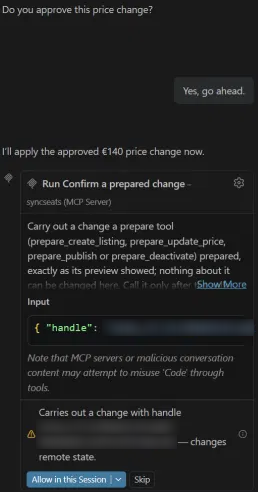
In the chat, choose Agent and ask in your own words. VS Code reads and prepares previews without asking. Before it confirms a change, it asks you. Allow Once, in the menu next to the button, lets this one change through and asks again next time; Allow in this Session stops asking for the rest of the session, and Skip leaves the change undone.
Connecting another app
Any other AI app connects the same way, as long as it can add an MCP server on the internet and sign in with OAuth. Look in its settings for adding an MCP server or a connector, then:
- Add a remote server, often called HTTP or Streamable HTTP, with the server address. If the app asks how to authenticate, choose OAuth; there is no API key or header to enter.
- When the app opens SyncSeats in your browser, sign in and choose what it may do.
- Check where the app is published and where it returns to before you choose Connect (see What SyncSeats asks you).
Apps that only start servers on your own computer, or that only take a fixed API key, cannot connect to SyncSeats. If an app stops with an error before SyncSeats opens in your browser, write to contact@syncseats.com with its name.
What SyncSeats asks you
Whichever app you connect, SyncSeats opens in your browser on the page Connect an app. If you are not signed in, you sign in first.
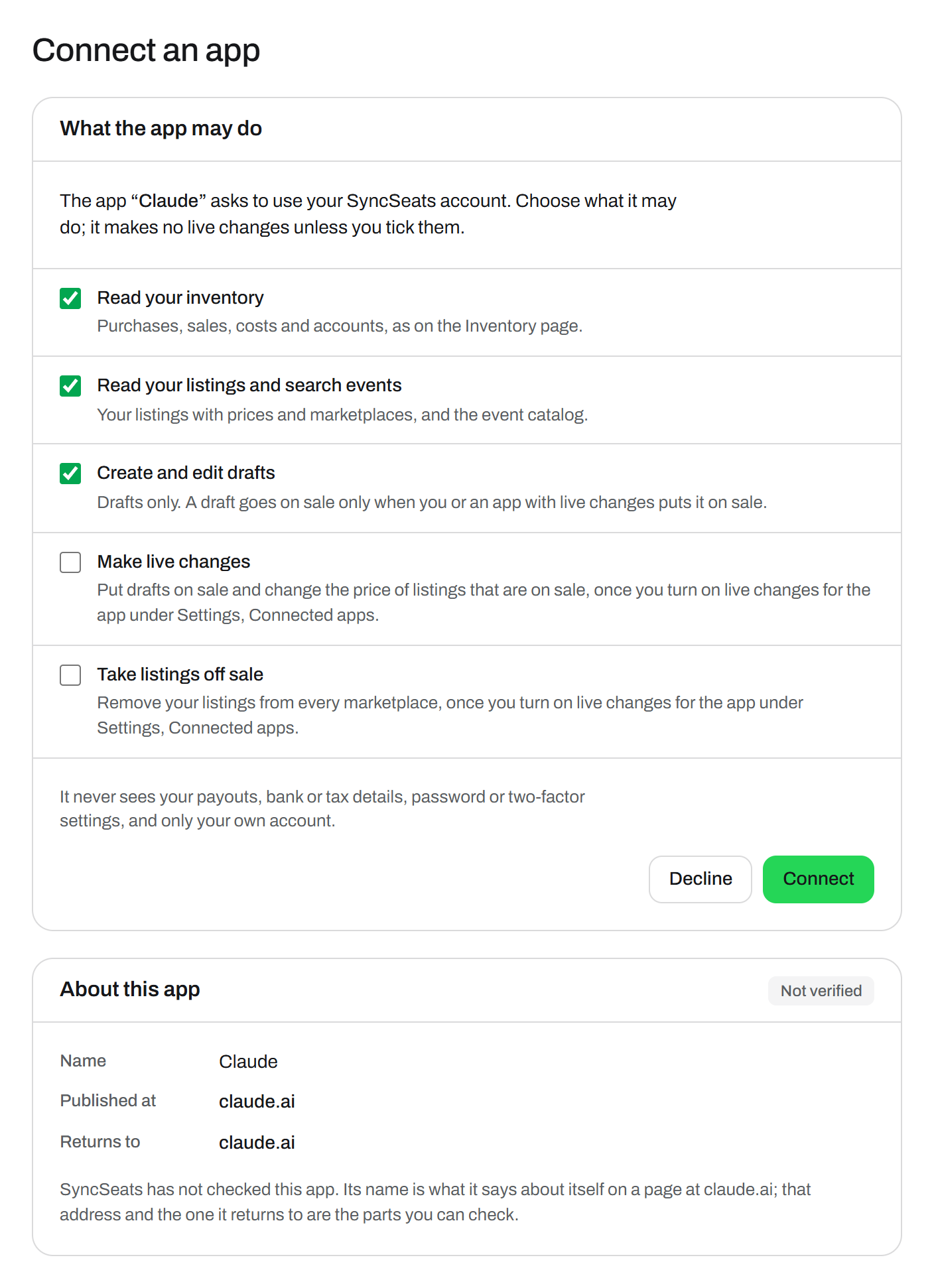
Check the app before you choose Connect. Its name is what the app says about itself, and anyone can call an app Claude. What SyncSeats can vouch for is where the app is published and where it returns to; for the four apps that is:
| App | Published at | Returns to |
|---|---|---|
| Claude | claude.ai | claude.ai |
| ChatGPT | chatgpt.com | chatgpt.com |
| Cursor | Not shown: Cursor registers itself each time, and SyncSeats shows the day | www.cursor.com, or localhost:8787 on your computer |
| Visual Studio Code | vscode.dev | 127.0.0.1 on your computer |
If you are connecting one of these four and something else is there, choose Decline. For another app, both should belong to the app you just started; if you are not sure, decline. Otherwise tick what the app may do. Make live changes and Take listings off sale start unticked; tick them now if the app is to put listings on sale or take them off, because an app only gets them later by connecting again.
Choose Connect, and the browser goes back to the app. SyncSeats emails you that an app was connected.
How a change is made
An app never changes anything in one step. It first asks SyncSeats for a preview: the event, the seats, the price, the marketplaces, and whether the listing goes on sale or stays a draft. The preview holds for two minutes. Only when the app confirms it does SyncSeats make the change, exactly as previewed and only once.
In our test, neither Claude in its default mode nor ChatGPT with Allow low-risk asked before confirming; VS Code did (see Connecting VS Code). Both models showed us the preview, asked whether to go ahead, and confirmed only after our yes. Read the preview before you answer: event and date, seats, price and marketplaces.
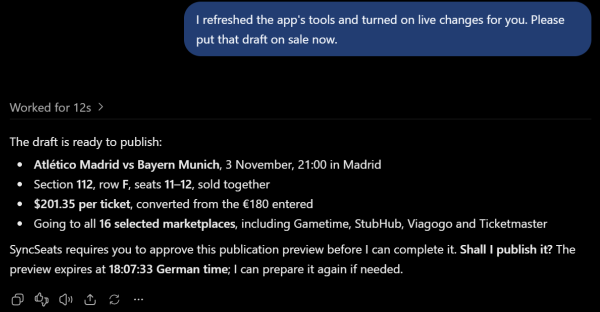
SyncSeats keeps listings in US dollars. If you give a price in euros, the preview shows it converted at the day’s rate. Every confirmed change, drafts included, reaches you as a listing update by email, Discord or Pushover, as set under Notifications.
Allowing live changes
With Make live changes or Take listings off sale, an app may change what buyers see only once you turn that on for it. In SyncSeats, open Settings, then Connected apps; each app has its own box there.
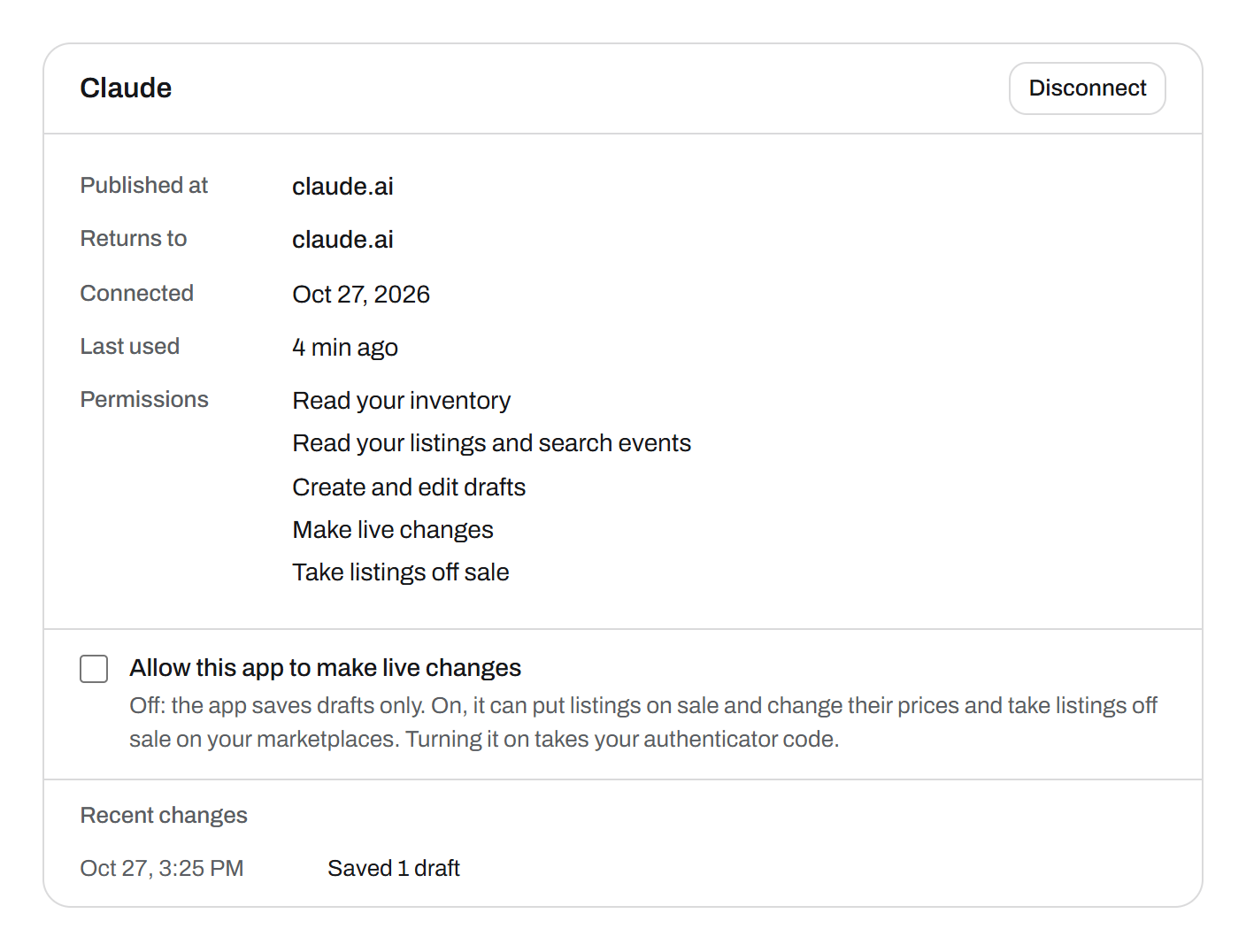
- Tick Allow this app to make live changes.
- Enter the code from your authenticator app and choose Allow live changes.
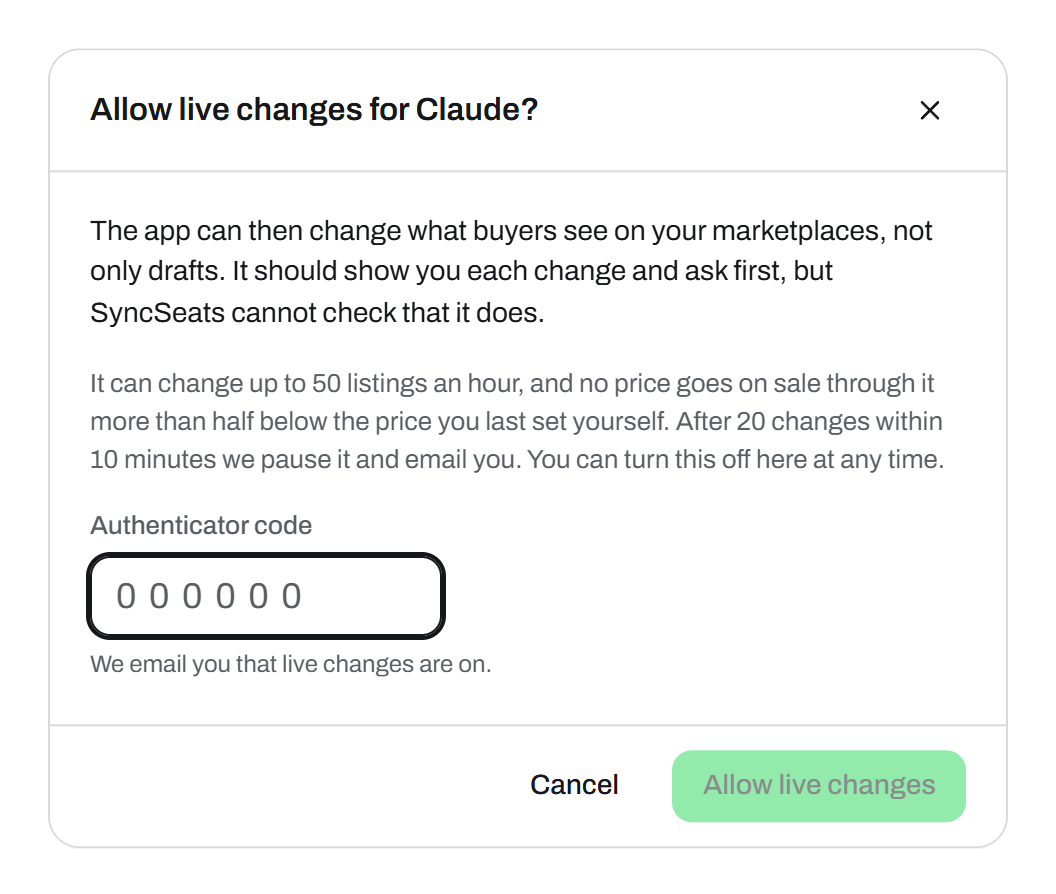
SyncSeats emails you that live changes are on. From then on the app can change up to 50 listings an hour, and no price goes on sale through it more than half below the price you last set yourself; a lower one you set in SyncSeats. To stop it, untick the box again; that takes no code.
Without live changes, an app saves drafts and tells you so. Claude did in our test:
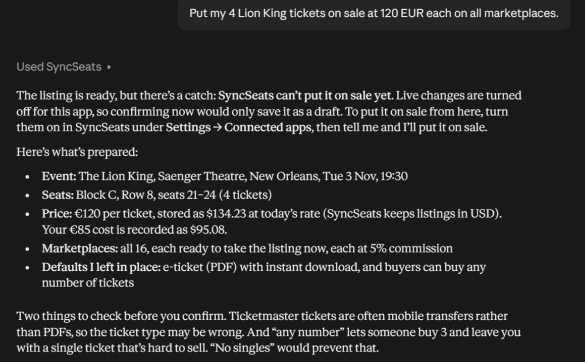
If the box cannot be ticked, the app was connected without the permissions; see Adding live changes later.
More live changes for a day
Each listing counts once: new prices for 30 listings take 30 of the 50. With live changes on, the app’s box shows what is left this hour, for example “38 of 50 live changes left this hour”. For a bigger job, choose Raise limit there:
- Choose 200 an hour or 500 an hour.
- Enter your authenticator code and choose Raise to 500 (or 200).
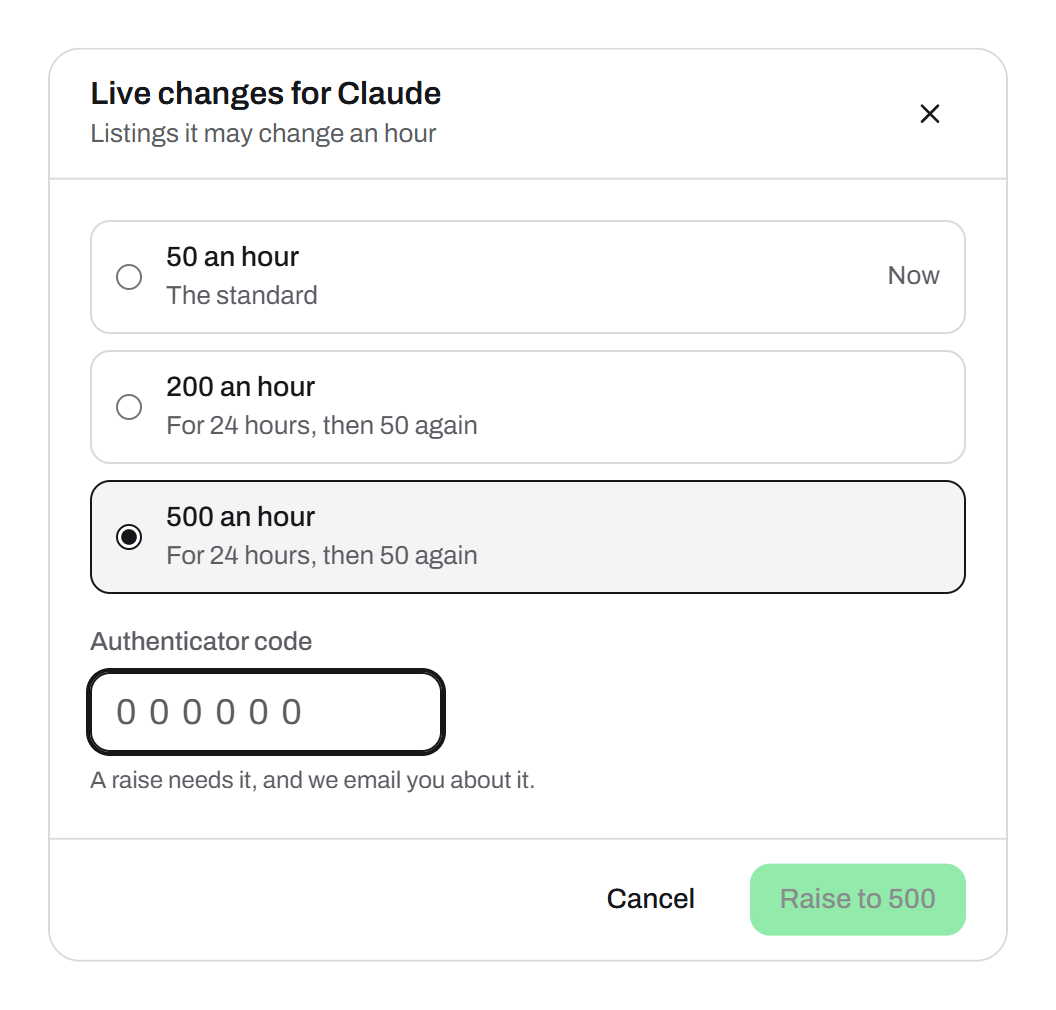
The raise lasts 24 hours, then 50 an hour apply again, and SyncSeats emails you about it. Lowering it or ending it early takes no code. Turning live changes off ends the raise too.
Adding live changes later
An app gets its permissions once, when you connect it. If you did not tick Make live changes or Take listings off sale then, connect it again:
- In SyncSeats, under Settings, Connected apps, choose Disconnect for the app.
- Connect it again from the app: in Claude with Connect, in ChatGPT with Reconnect. VS Code asks at your next request in the chat to authenticate again; choose Allow. In Cursor, give the server a new name in mcp.json, such as syncseats-live, and choose Authenticate; a second entry with the same address counts as the same server.
- This time, tick the permissions on Connect an app.
- In ChatGPT, open Settings, Plugins, SyncSeats, then Manage, Manage app, and choose Refresh tools. In VS Code, run MCP: List Servers, choose syncseats and Restart Server. In another app, reload the server or its tools.
- Turn on live changes for the app, as above.
ChatGPT, Cursor and VS Code keep the list of tools they loaded first. In our test, ChatGPT saw the new ones only after Refresh tools, VS Code only after Restart Server, and Cursor only under a new name; signing in again or Reload in Cursor’s settings was not enough.
Disconnecting an app
In SyncSeats, open Settings, Connected apps and choose Disconnect. From then on the app cannot reach your account; what it already changed stays as it is. The connector stays in the app: Claude asks you to reconnect, ChatGPT says the connection has expired, Cursor shows the server with an error and Authenticate, and VS Code asks at the next request to authenticate again. Remove it there if you no longer need it; in VS Code, run MCP: List Servers, choose syncseats and Show Configuration, and delete its entry.

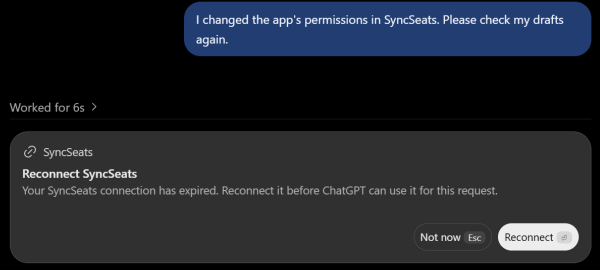
Signing out in the app does not end the connection. In our test, Logout in Cursor’s settings left Cursor connected in SyncSeats, and signing in again added a second connection; Connected apps then shows both, each with when it connected. Disconnect the one you no longer use.
SyncSeats also disconnects every app when your password is changed or reset and when an account is suspended. An app that has not been used for 30 days has to be connected again.
The limits at a glance
Limits apply to each app. They make sure an app that misunderstands you, or is misled by a text it reads, cannot do much at once:
| What | Limit |
|---|---|
| Reading | 60 requests a minute |
| Previews | 10 a minute, each for up to 50 listings, or 20 ticket groups of a new listing |
| Open previews | Up to 20 at a time, each for two minutes |
| Confirmations | 10 a minute |
| Live changes | 50 listings an hour; for 24 hours 200 or 500 with your authenticator code |
| Prices | No more than half below the price you last set yourself |
| Pause | After 20 changes within 10 minutes, with an email. You resume the app under Connected apps; its live changes stay off until you turn them on. |
| Apps | Up to 10 per account; an eleventh disconnects the one unused the longest |
Over a limit, the app is told how long to wait. A new listing that no longer fits into the hour’s live changes is saved as a draft.
Sources
The apps change their menus often. Their own help pages have the current steps:
Questions about Connecting AI apps
Can an app sell my tickets without me?
Only as far as you allow it. Without the live permissions and the switch, it saves drafts. With both, the app confirms changes itself: SyncSeats limits how many, keeps any price from falling more than half below your own, tells you about every change and pauses the app after 20 changes in 10 minutes.
Do I need an API key?
No. You sign in to SyncSeats in your browser and choose what the app may do. The app gets its own access, which you end under Connected apps.
The app says it cannot put a listing on sale. Why?
Either it was connected without Make live changes, or live changes are off for it under Connected apps. Its answer names the way: turn the switch on, or connect the app again as described under Adding live changes later.
Does it work with other apps?
Yes, if the app connects to MCP servers on the internet and signs in with OAuth. It uses the same address; Connecting another app above has the steps. We have tested Claude, ChatGPT, Cursor and VS Code.
Keep reading
- Selling tickets on several marketplaces without selling twiceWhy listing on several resale marketplaces sells more tickets, where double sales come from, and how to keep every listing in sync, by hand or automatically.Selling, 8 min read
- DAC7 for ticket sellers: what platforms reportWhat the EU’s DAC7 rules mean when you resell tickets through a platform: who is reported, which data is passed on, the thresholds, and what you need to do.Tax, 7 min read
- Ticket delivery methods explained: PDF, mobile QR and transferPDF e-tickets, mobile QR codes and transfers: which method your ticket uses, the deadlines that apply, and how to prove a delivery so the sale completes.Delivery, 7 min read
List your first ticket on all 17 marketplaces
The account is free, and you pay nothing until a ticket sells.